06. Opening an Existing Unity Project
Opening an Existing Unity Project
Starter Project
- Download the source code zip file from: Introduction to Virtual Reality - Udacity Carnival
- Unzip the file. Open Unity. Click on Open. Navigate to your unzipped file. Click Select Folder.
- Unity project: Udacity Carnival
- Scene: Assets > UdacityVR > Scenes > Carnival.unity
Note: The link will take you to the associated GitHub repository's releases page. From there on you should:
- Read the release notes and the README.
- Download the Source code (zip), or the Source code (tar.gz), for the most recent release version which will be noted as the Recommended Version in the Release Status section of the release notes.
- Unzip the repository to a convenient location on your computer.
Important! Make sure you use the Unity version listed under the Versions Used section on the associated GitHub repository releases page.
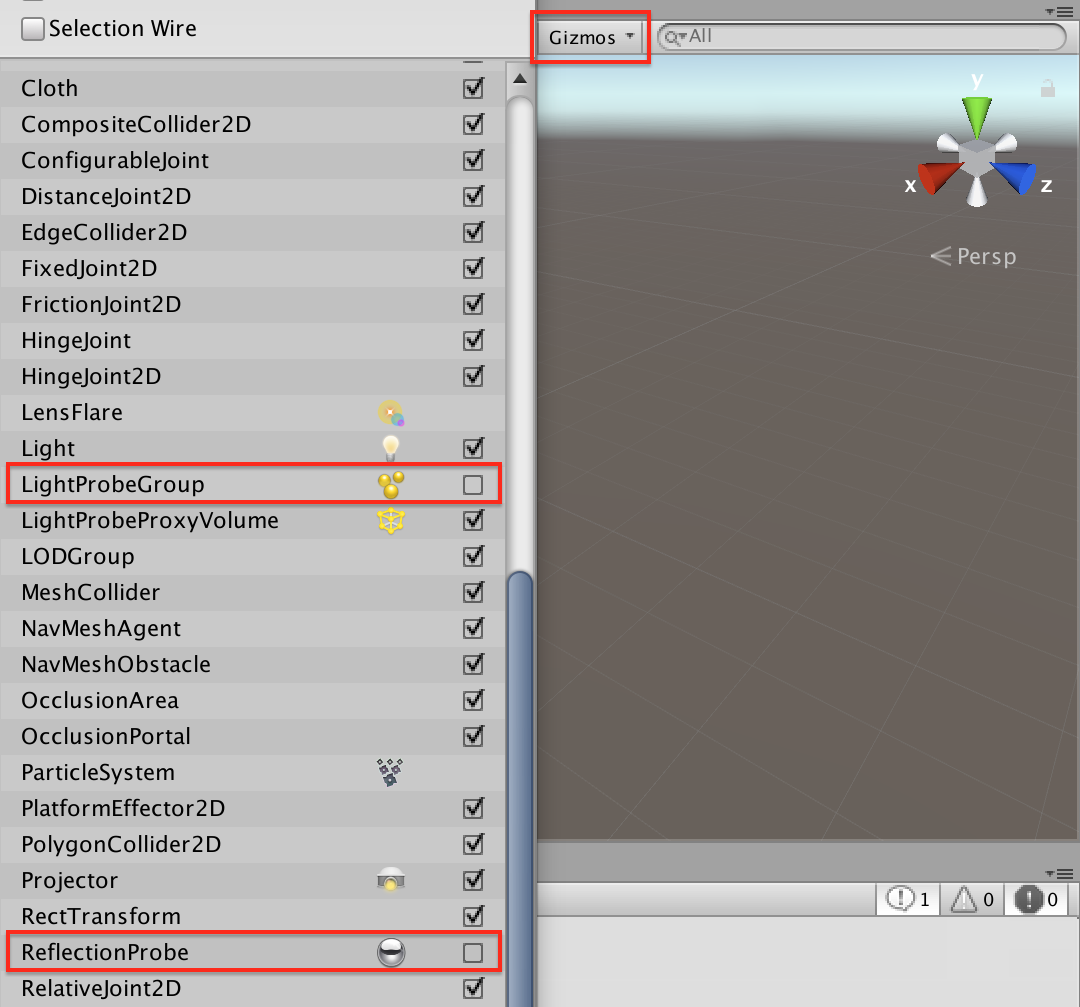
Turn off Light and Reflection probes
One thing you might want to do when downloading these course assets and projects is turn of the display of the Reflection Probes and Light Probes in the Gizmos menu. See the image below. We could set this up for you if we distributed the EditorUserSettings in the Library folder but it's good to know how to turn these on an off yourself.